
Getting started with IceStats Pro
Five minutes of setup, then you're ready for puck drop. Do steps 1 to 5 at home, where you have Wi-Fi.
Phase 1 · At home before puck drop
1. Install the app
Install IceStats Pro from the App Store on iPhone or iPad, or from Google Play on Android. Get the app.
2. Create your account
- Open IceStats Pro and tap "Create account".
- Sign up with your email, then open the confirmation email we send and tap the link. It comes from [email protected]. If it isn't in your inbox, check Junk or Spam.
- Back in the app, tap "Sign in".
- Check "I agree to the Terms of Use and Privacy Policy" and tap "Continue".
3. Set your game defaults
The app asks you to pick a report type right after you sign in.
- Pick "Player Report" if you track one player, whether you're a parent, a player or a scout, or "Team Report" if you're a coach or team manager.
- Choose which stats to track, then set your period length to match your league.
- Tap "Save defaults". You can change these any time in Setup > "Game defaults".
4. Choose your stats page name
Account > "Your stats page" > "Username". Your username becomes your stats page address:
my.icestatspro.com/<username>. Use lowercase letters, numbers and hyphens. Pick something that doesn't include your player's full name.5. Set up your team
The app needs a few pieces in place before a game. Create them in this order, all from the Setup tab:
- League: Setup > "Leagues" > "Create a League". The only field is a name, for example "Metro Youth Hockey".
- Season: Setup > "Seasons" > "Create a Season". Enter a name and year, for example "2026-27".
- Rink: Setup > "Rinks" > "Create a Location". Only the name is required.
- Your team: Setup > "Teams" > "Create a Team". Enter the team name and initials (up to 5 letters), pick a color, and add the league.
- Roster: on "Set up your roster", tap "Add Roster from Scratch". Add each player's jersey number, first and last name, and position.
- Opponent: create the other team the same way. Opponents don't need a roster. Add their goalie if you want saves credited to them.
Pick positions carefully: a goalie stays a goalie. If a player plays both, add them twice, once as a goalie and once as a skater.
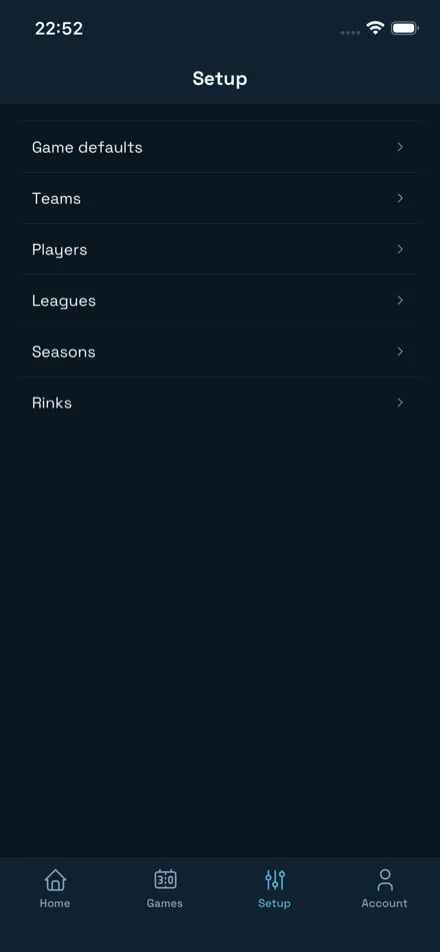
The Setup tab
Phase 2 · At the rink
6. Track your first game
- On Home, tap "Start a Game".
- Pick "Your Team", the "Opponent", whether you're "Home" or "Away", the starting goalies, the rink, season and league.
- For "Report type", choose "Player Report" (then pick "My Player") or "Team Report".
- Tap "Start Game".
- To record a play, tap an action (GOAL, SHOT, FACEOFF, PENALTY or GOALIE), set the clock, add the details and save. Faceoffs save as soon as you tap "WON" or "LOST".
- Move between periods with the period arrows.
No signal at the rink? Keep going. Every play saves on your phone the instant you record it.
Made a mistake? Tap "Show All Events", open the play, and edit or delete it. There's no undo button.
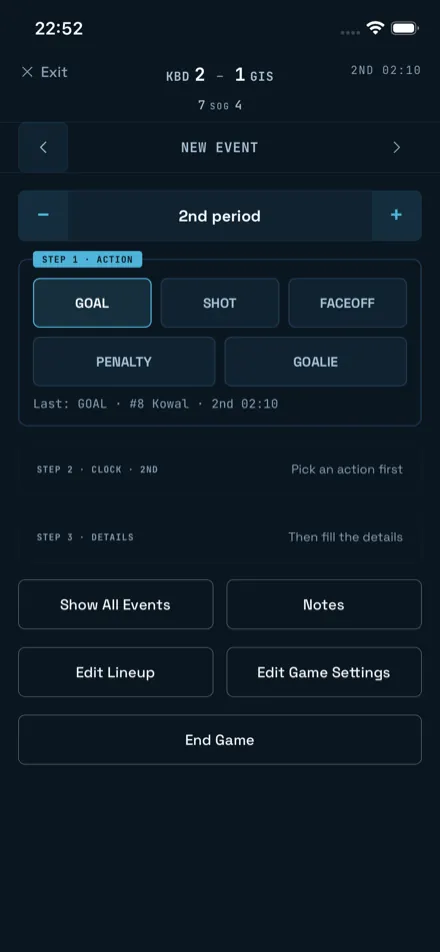
Live tracking
Phase 3 · After the buzzer
7. End and submit
- At the final buzzer, tap "End Game". Confirm the final score and tap "End Game" again.
- Once you're back on Wi-Fi or cell signal, tap "Submit for Reporting".
- Your report is built on our side and appears on your stats page, usually within about 15 minutes. We'll email you when it's ready. Open your stats page from Home > "View my stats", or send it to family with "Share my stats page". The email comes from [email protected]. Don't see it? Check your Junk or Spam folder and, if it's there, mark it Not junk (or Not spam), or add that address to your contacts, so future emails reach your inbox.
Need to fix something after submitting? Tap "Reopen Game", make the change, then end and submit again.
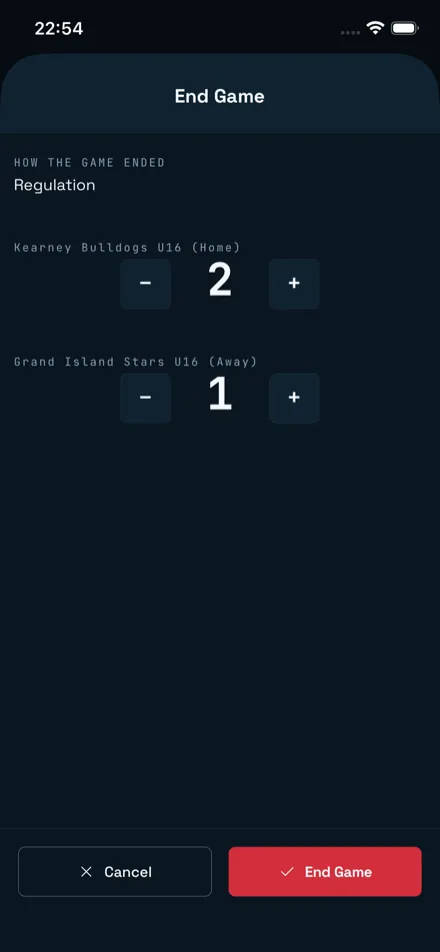
Confirm the final score
Tell us what you think
Account > "Send feedback". Turn on "Include my email" if you'd like a reply. Feedback written offline sends when you're back online.
Questions? Write to us on the contact page or visit the FAQ.